
Snaps is a native macOS menu bar app for taking screenshots. Press a shortcut and the capture goes straight to the clipboard, and a small glass preview appears in a corner of the screen. Paste it with ⌘V, drag it into another app, or double-click it to add arrows, text, or blur first.
It’s free and open source under the MIT license. It has no account, no subscription, and no tracking. It requires macOS 26 or later, and releases are signed with a Developer ID and notarized by Apple.
Capture, then keep going
| Capture | Shortcut | What it does |
|---|---|---|
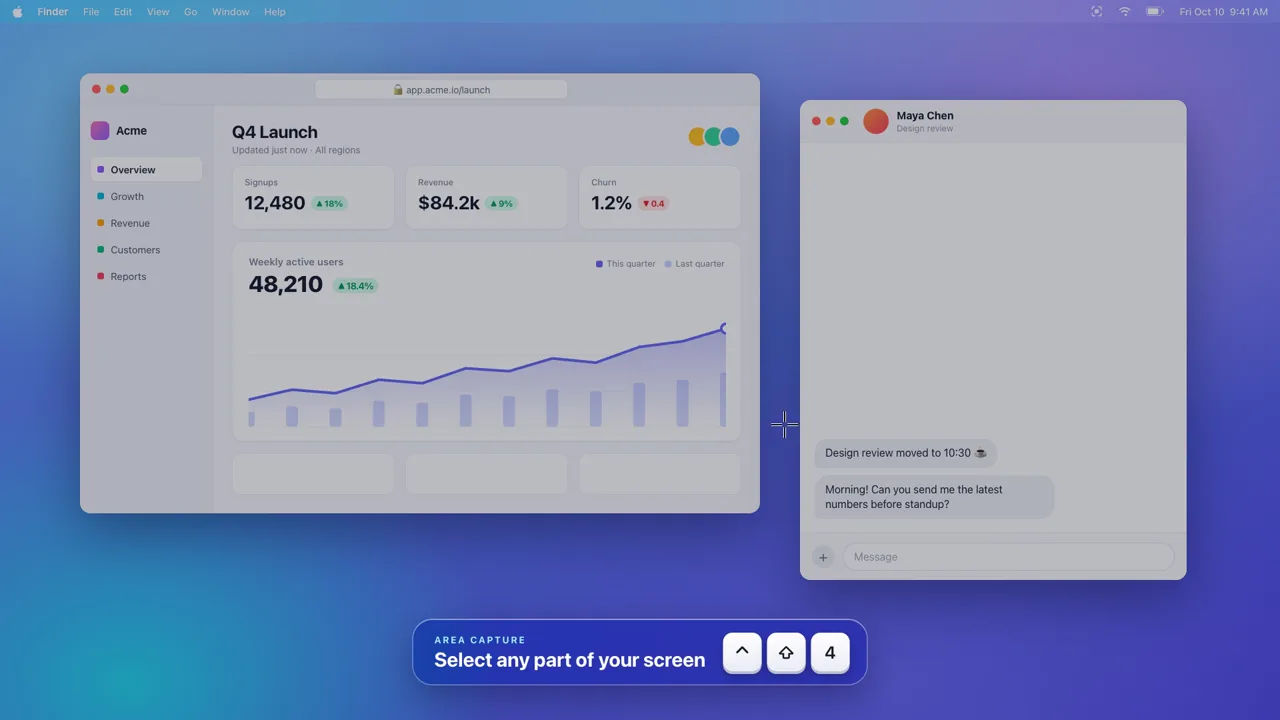
| Area | ⌃⇧4 | Drag to select a region |
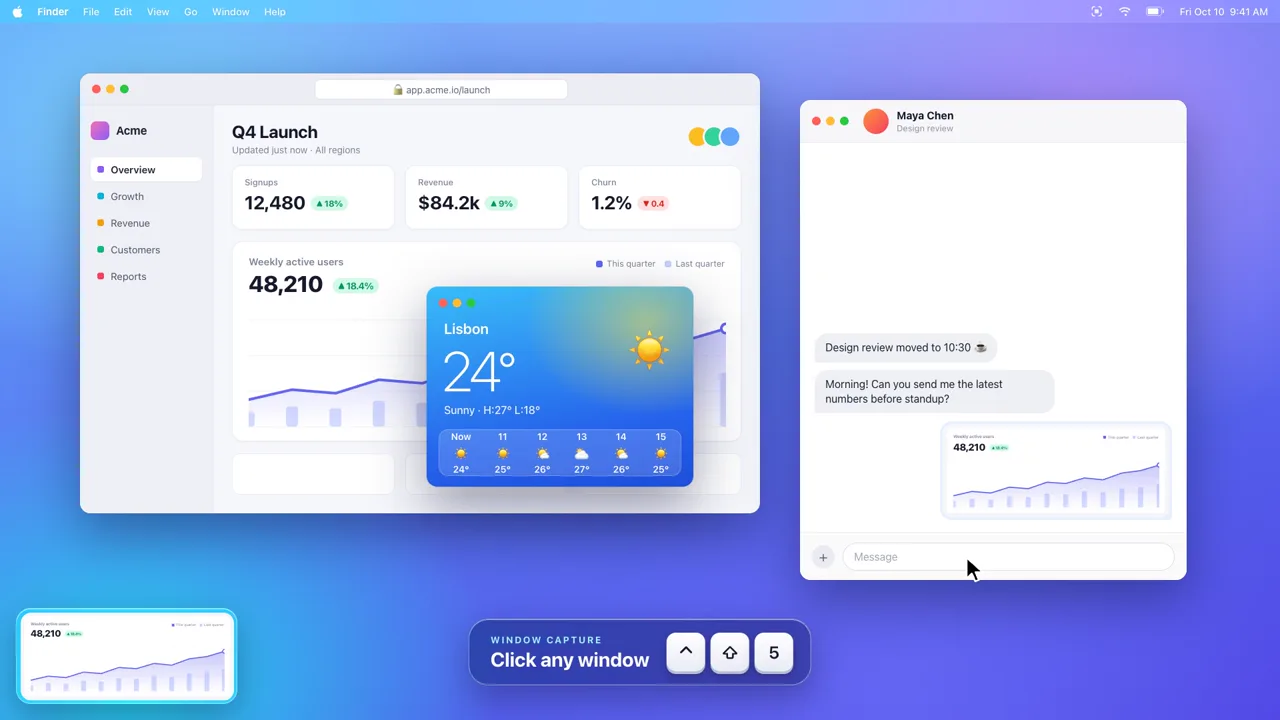
| Window | ⌃⇧5 | Click a window to capture it |
| Full screen | ⌃⇧3 | Captures the display under the cursor |
| Gallery | ⌃⇧G | Shows recent captures across the top of the screen |
Captures use macOS’s own screencapture tool, so area and window selection look and behave like the system’s. The shortcuts are global hot keys, and you can change them in Settings.
The preview sits in whichever corner you choose and follows the cursor from one display to another. Hover over it for buttons to close, pin, annotate, copy again, save, or open the capture. Drag it into Finder, Slack, Mail, or a browser and it dismisses itself after the drop. Otherwise it leaves after 5, 10 or 20 seconds, or stays until you close it.
The gallery drops a glass strip over the menu bar with your last 60 captures, newest first. Click one to copy it, drag it out, or double-click to edit it. Unsaved captures are cleaned up after seven days. Anything saved to a folder stays in the gallery while the file exists.
Mark it up before you send it
Version 1.0.2 added an annotation editor. Double-click a preview or a gallery card, or click its pencil button, and the capture opens with the arrow tool selected.
- Arrow (A): drag from tail to tip. Hold Shift to snap to 45°.
- Text (T): click and type, in seven colors and three sizes.
- Blur (B): drag over anything private. The area is pixelated and then softened, so the original can’t be recovered.
- Select (V): move, resize, nudge or delete any mark.
⌘Z and ⇧⌘Z undo and redo. Done (⌘↩) writes the marks into the capture at full resolution, so the preview, the gallery, and drag and drop all get the annotated version. Close the window without Done and the marks are kept as an editable draft until you quit Snaps.

The editor came from Daniel Lafraia in pull request #1, the project’s first outside contribution. It also added Edit and Window menus so ⌘Z, ⌘C and ⌘W reach the editor.
Getting permission right
Screenshot apps need macOS’s Screen Recording permission. Without it, captures only show your wallpaper. Granting it usually means hunting for the app in a long list in System Settings.
On first launch, Snaps opens Privacy & Security at the right list and docks a small glass card beside the window. Drag the Snaps icon from the card into the list, switch it on, and the card offers to relaunch the app.
How it’s built
The app is about 4,600 lines of Swift across 19 files. It uses SwiftUI’s glassEffect and AppKit’s NSGlassEffectView for the Liquid Glass panels, and Carbon hot keys for the global shortcuts. A build script compiles it with swiftc directly, so you only need Apple’s Command Line Tools to build it from source.
Releases go through a separate script. It generates an Xcode project with XcodeGen, archives and signs the app with a Developer ID, sends it to Apple’s notary service, and staples the ticket. It then packages a DMG with a custom installer window built with dmgbuild. A stable Snaps.dmg link always downloads the latest release.
The site and promo video are generated from the repository. The promo is an HTML and CSS animation rendered frame by frame with headless Chrome and FFmpeg. Its music bed and interface sounds are synthesized by a Node script and timed to the same timeline, so there are no third-party samples. The site’s social card and the DMG background are rendered from HTML in the same way.
Try it
Download Snaps.dmg, drag Snaps into Applications, and follow the Screen Recording card on first launch. The website has the promo and the full shortcut list, and the repository README covers building from source and releasing.
The creation date shown here is the GitHub repository’s UTC creation date. The images and video on this page come from the project’s README and website.