
Forever Touch is a World of Warcraft: Forever addon that makes the game playable on a touch screen. It puts a spell wheel under your right thumb, every game window one tap away, and a guided setup in front of you on first login. I built it for playing through DroidDeck on a Galaxy Z Fold 8, with DroidDeck’s on-screen stick under the left thumb for running.
It’s free and open source under the MIT license. It’s an unofficial fan project, not affiliated with or endorsed by Blizzard Entertainment or the DroidDeck project.
A note on the images: they’re rendered previews, not in-game captures. The position and size of every button comes from the addon’s real Lua code, run through a mock WoW client, but the world, the character and the unit frames are stand-in drawings and the icons are original placeholders, not Blizzard art.
A spell wheel for your thumb
The spell wheel has 12 buttons: one big thumb button, an inner arc of four, an outer arc of five and two minis. Together they hold exactly one action bar. Buttons show round cooldown sweeps with seconds, a red tint when you’re out of range, blue when you’re out of mana or rage, stack counts, a gold glow for auto-attack and a pink glow for procs.
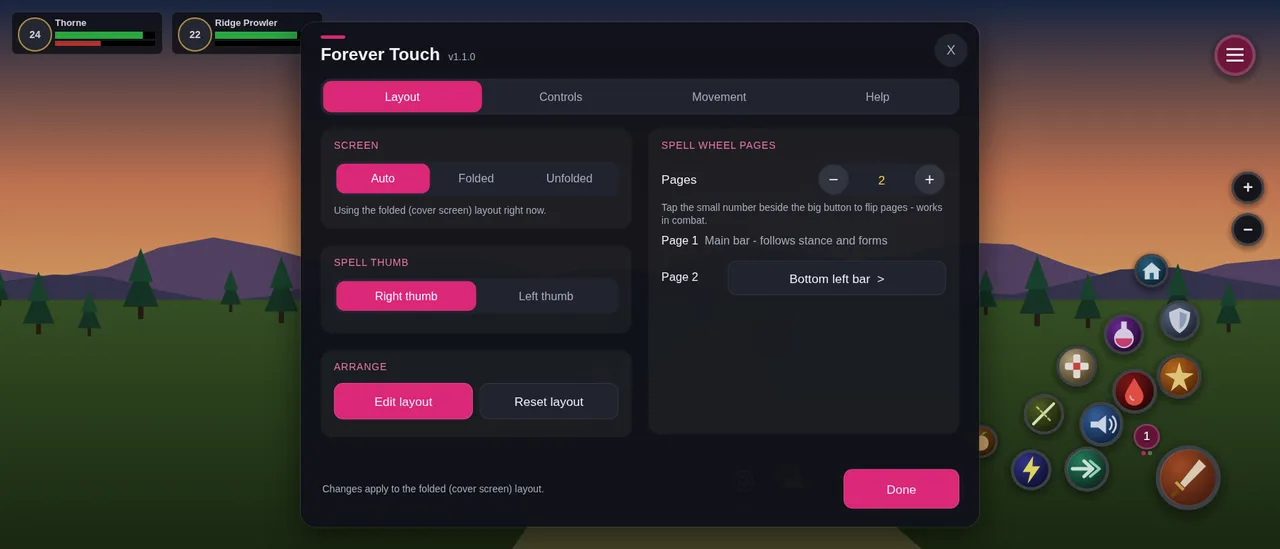
There are three pages. Page 1 follows your main bar, so warrior stances, druid forms and rogue stealth swap it automatically, and pages 2 and 3 can show any other action bar. Tap the small number on the wheel to flip pages, even in combat. A target row offers Target nearest enemy, Assist and Clear target, plus Pet attack for hunters and warlocks. Drag on empty ground to turn the camera, and use the + and − buttons to zoom.
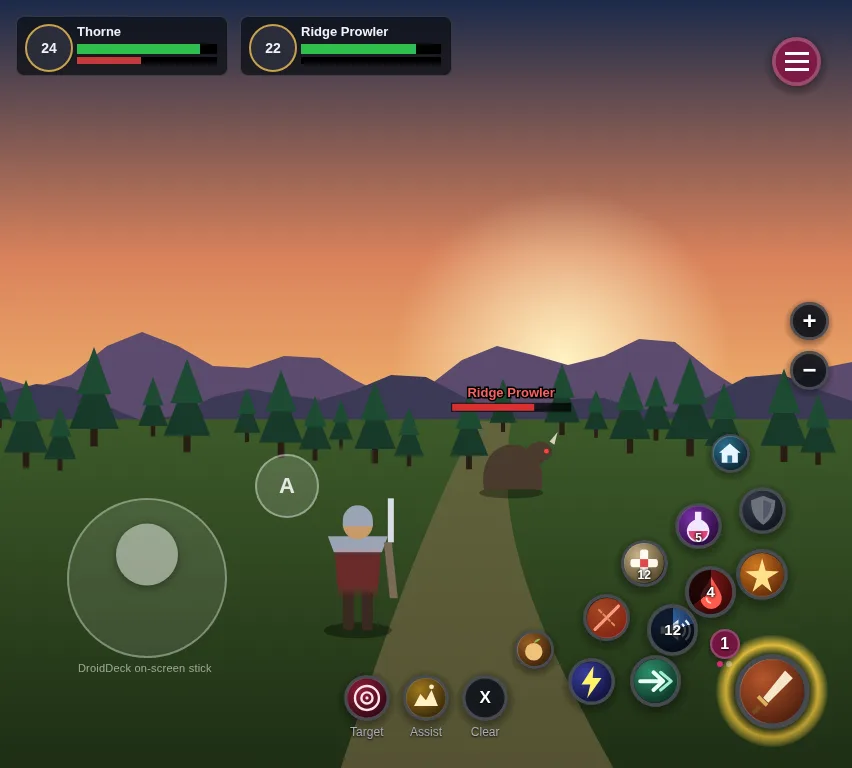
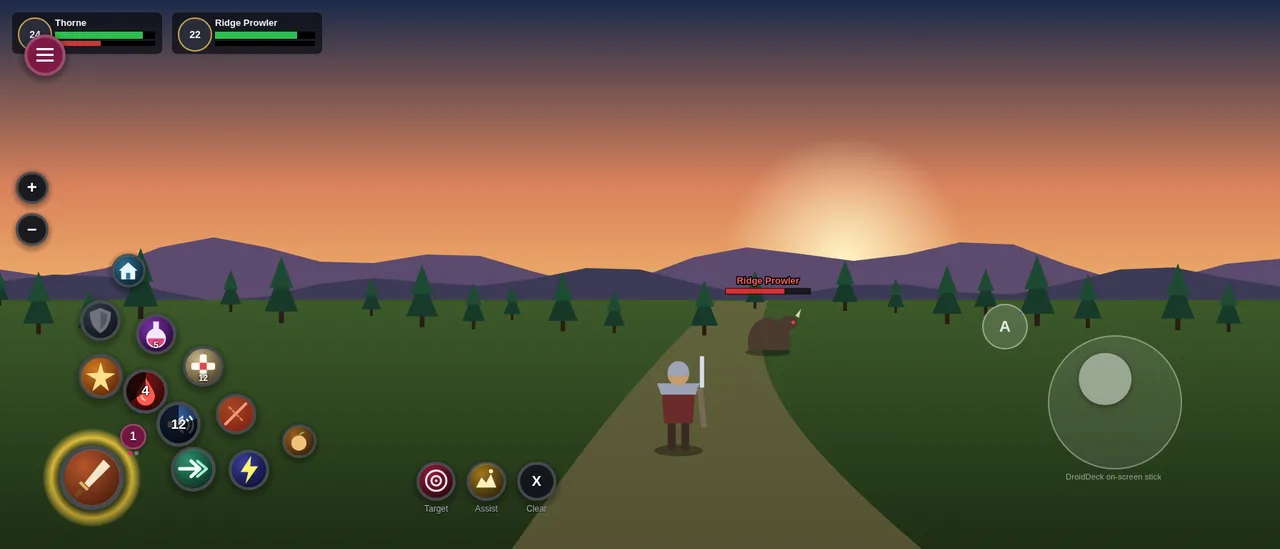
The folded cover screen and the unfolded inner screen each keep their own layout, and the addon switches between them automatically when you open or close the phone. Left-handed mode mirrors the whole thing.
Menus and assigning spells
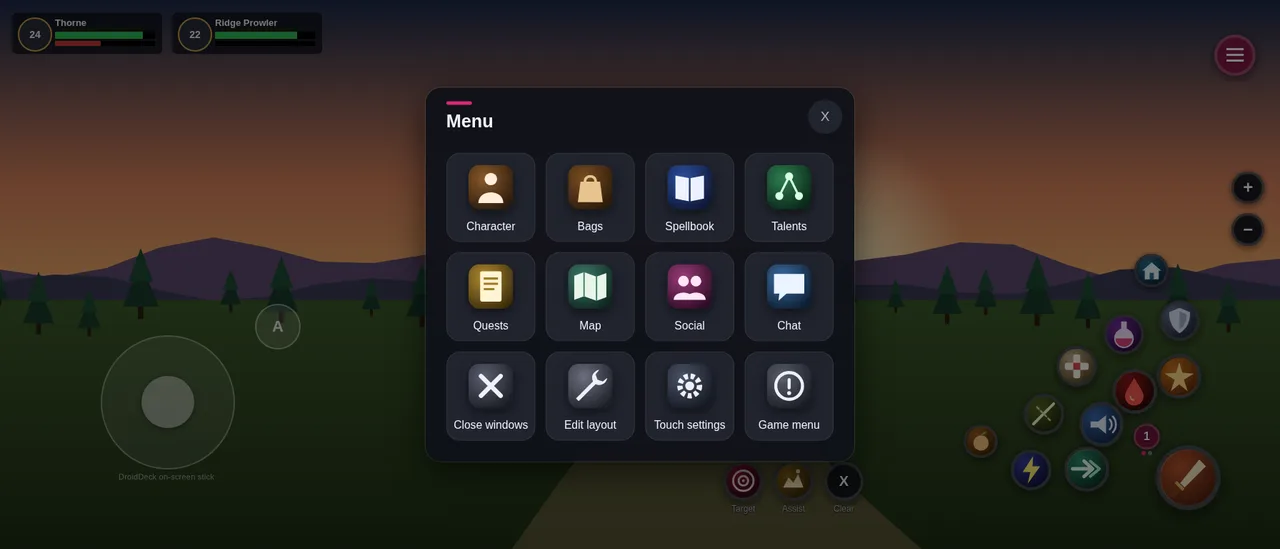
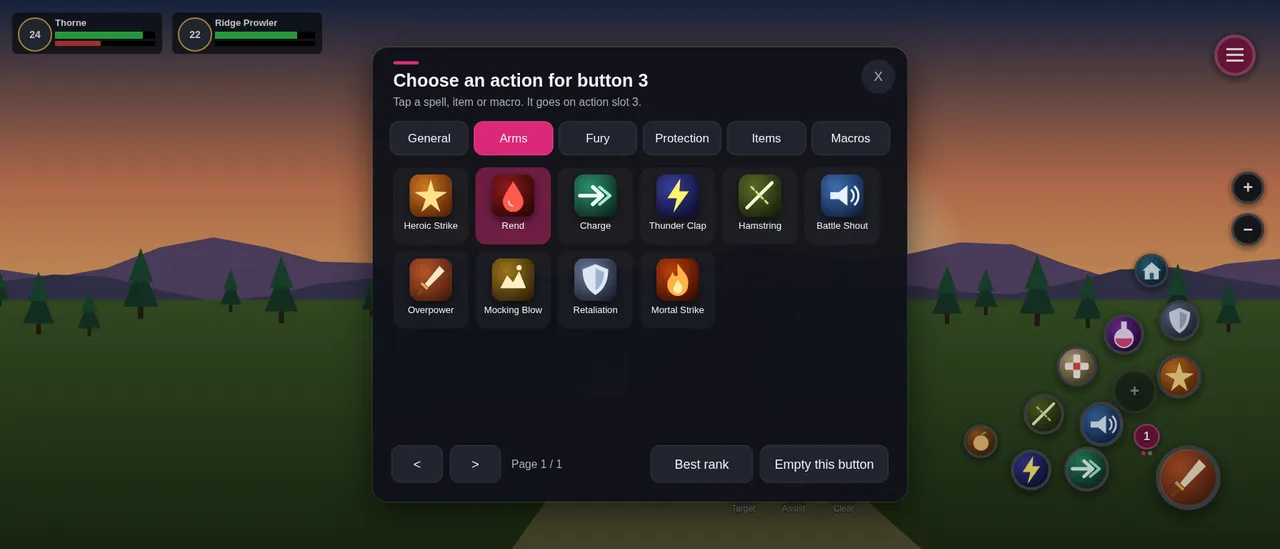
The one-tap menu covers Character, Bags, Spellbook, Talents, Quests, Map, Social, Chat, Close windows, Edit layout, Touch settings and Game menu. It works in combat, and tapping outside closes it. To put a spell on an empty button, tap the + and pick a spell, usable item or macro from a big grid. Classic’s rank lists show only the best rank by default.
Edit layout shows pink handles to move groups and resize them from 50 to 170%. You can set their opacity, tap a button to reassign it, or drag one button onto another to swap them. A pink circle shows where DroidDeck’s stick fits, and the stick area can be resized and moved too. Touches that slide off the stick don’t spin the camera, and you can choose whether that applies near the stick or across the whole stick side.

How movement works
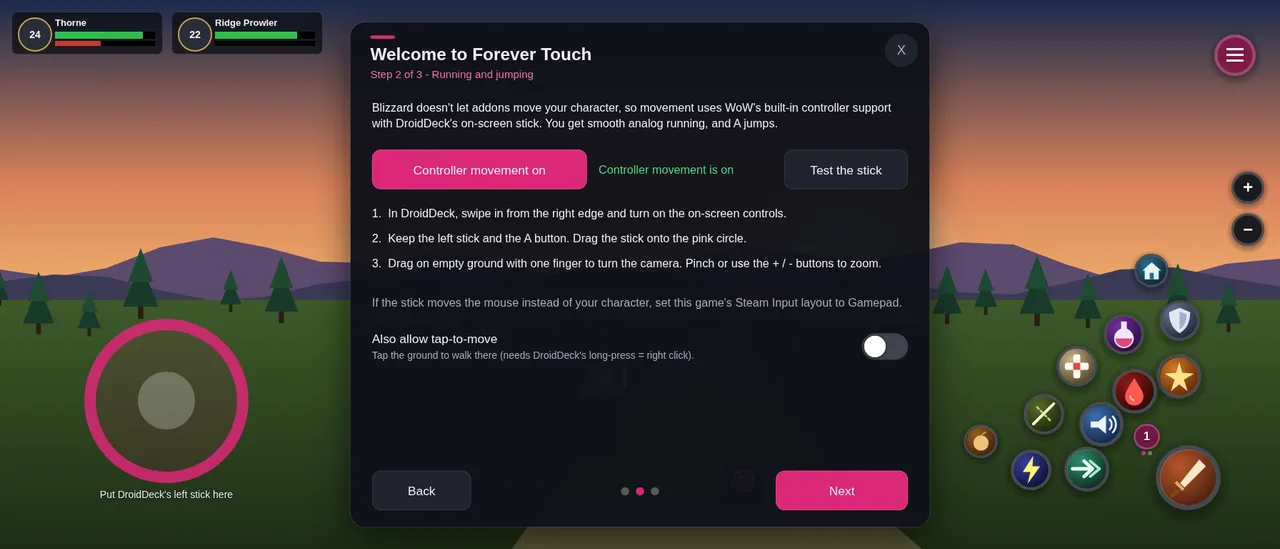
Blizzard doesn’t allow any addon to move or jump your character. The protection exists to stop bots and applies to every addon, so an addon can’t draw a working joystick. Forever Touch uses the path Blizzard does allow, which is WoW’s own controller support:
- The setup guide turns on WoW’s controller support and binds A to Jump.
- DroidDeck’s on-screen stick shows up to the game as a controller, so the left stick gives smooth analog running: half-push to walk, full push to run.
- Your other thumb stays on the spell wheel, so you can run and cast at the same time.
Tap-to-move, using WoW’s click-to-move, is an option, and so are on-screen W, A, S, D and Space keys if your DroidDeck build has them. The guided setup walks through all of it in three steps, covering your thumbs with a live diagram, movement, and comfort settings. Settings live in four tabs, Layout, Controls, Movement and Help, and both troubleshooting tests are buttons, so you never need to type a command.
Combat safe
The addon is built on Blizzard’s secure templates. Casting, page flips and the menu all work in combat. Anything that can’t change in combat, like assigning or moving buttons, waits until the fight ends instead of erroring, and Edit layout closes itself when a fight starts.
The README is honest about the rest of the limits. Two taps on WoW buttons at the very same moment arrive as one mouse click, though running while casting works because DroidDeck handles its stick separately. Auto fold switching reads the game’s screen size, so a fixed DroidDeck resolution needs the screen chosen by hand. Real-device testing is early: the first reports from a Galaxy Z Fold 8 found the touch and stick issues covered in its troubleshooting section, and more testers are wanted.
How it’s built
The addon is Lua 5.1, the version WoW uses, split into modules for the spell wheel, the menu, the spell picker, edit mode, setup, settings and the touch and stick tests. The tests run it against tests/mock_wow.lua, a small fake WoW client that models frames, scripts, Blizzard’s restricted snippet environment and, most importantly, combat lockdown. Any insecure change to a protected frame during combat fails the run, the same class of bug that breaks addons in the real game. The suite runs in three click modes: cast on press, cast on release, and legacy clients.
The previews come from the same mock client. A script loads the real addon, logs in and exports the on-screen rectangle of every control for each layout, and fails if any control would be off screen. An HTML page draws those rectangles over a stand-in scene, and a shell script screenshots it with headless Chrome and builds the README’s animated GIF with FFmpeg. A Python script packages the release zip.
Install
Download the latest zip from the releases page and copy the ForeverTouch folder into the game’s Interface/AddOns folder. Under DroidDeck, that’s on the Windows drive of the Proton prefix where you installed Battle.net. Make sure Forever Touch is ticked in the AddOns list on the character select screen, then log in, and the setup guide opens after about two seconds. Type /ft at any time for settings.
The repository README has the DroidDeck setup, the full settings and commands, and troubleshooting tables for taps that land in the wrong place and a stick that doesn’t move your character. Real-device screenshots and recordings are welcome as pull requests.
The creation date shown here is the GitHub repository’s UTC creation date. The images on this page are the rendered previews from the README.